GE Universal Remote: Complete Setup, Codes & Programming Guide (2026)
Introduction
Losing or breaking a TV remote is annoying, but it doesn’t have to mean buying a brand-new one. A GE universal remote is one of the most affordable and reliable ways to control your TV, DVD player, cable box, soundbar, or streaming device — all from a single handheld device. Whether you picked one up from a local store or found an old one in a drawer, this guide walks you through everything you need to know: what a GE universal remote is, how it works, how to program it with or without codes, and how to fix it when programming doesn’t go as planned.
GE universal remotes are manufactured under license by a company called Jasco, which also produces remotes for other well-known brands. Despite the budget-friendly price tag, these remotes are surprisingly capable, supporting a wide range of devices from older CRT televisions to modern smart TVs and 4K streaming boxes.
If you’re also exploring other budget-friendly tech accessories, you might like our guide to affordable wireless earbuds that deliver premium sound without the premium price.
What Is a GE Universal Remote?
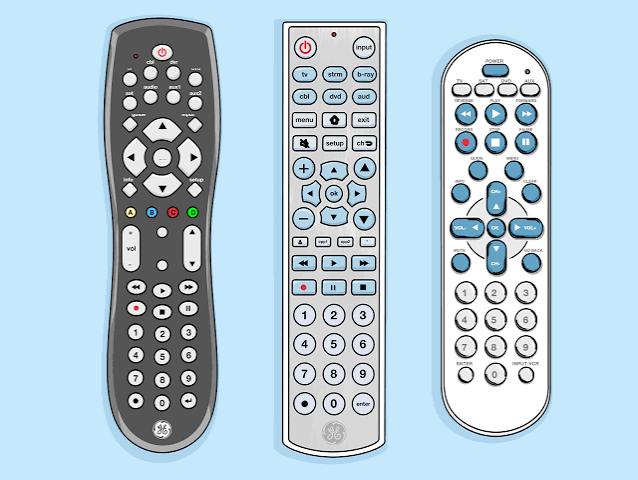
A universal remote is a single controller designed to operate multiple electronic devices instead of requiring a separate remote for each one. According to the general concept described on <cite index=”1-1″>Wikipedia, a universal remote is a remote control that can be programmed to operate various brands of one or more types of consumer electronics devices</cite> such as televisions, DVD players, and cable boxes. GE remotes apply this exact principle, letting you replace three or four separate remotes with just one.
<cite index=”1-1″>GE remotes are technically produced by a company called Jasco as part of a licensing agreement with GE, and while budget-friendly, they are simple to program.</cite> This makes them a popular pick for people who want a no-fuss replacement remote that doesn’t require an app, Wi-Fi, or a subscription.
Key Features of GE Universal Remotes
- Multi-device control: Operates TVs, DVD/Blu-ray players, cable boxes, soundbars, and streaming devices.
- Two programming methods: Manual code entry or automatic code search.
- Pre-programmed brand support: <cite index=”1-1″>Some GE remotes come pre-programmed to work with popular TV brands like Samsung and LG right out of the box.</cite>
- Compact, battery-powered design: No charging cables or apps required.
- Wide compatibility: Supports hundreds of brand codes across device categories.
- Simple indicator light system: Confirms whether a code has been accepted.
How to Program a GE Universal Remote (Step by Step)
There are two main ways to set up your remote: entering a known code manually, or letting the remote search for the correct code automatically.
Method 1: Manual Code Entry
This is the fastest method if you already know (or can look up) the code for your device brand.
- Turn on the device you want to control (TV, DVD player, cable box, etc.).
- Press and hold the SETUP button on the remote until the indicator light turns on, then release it.
- Press and release the device button you’re programming — for example, TV, DVD, or AUX.
- Enter the three- or four-digit code for your device’s brand using the number keypad. Once the code is accepted, the indicator light will turn off.
- Point the remote at the device and press the POWER button. If the device turns off, the code worked and is now saved.
If the first code doesn’t work, simply repeat the process with the next code listed for your brand in the code book or on the official code list.
Method 2: Auto Code Search
If you don’t have a code book or can’t find your brand’s code, the auto search feature will scan through all stored codes until it finds a match.
- Turn on the device you wish to program.
- Press and hold SETUP (or CODE SEARCH) until the indicator light turns on, then release.
- Press and release the device button for the device you’re programming. The light will blink once and stay lit.
- Point the remote at the device and press POWER repeatedly, waiting about two seconds between presses, until the device turns off. <cite index=”7-1″>You may need to press the volume or power button multiple times to test each batch of codes, waiting roughly three seconds after each press so the device has time to respond.</cite>
- As soon as the device turns off, press the same device button again to lock in and save that code.
This method takes a little longer but is extremely reliable, especially for less common or older device models.
Finding the Right Code for Your Brand
Every GE universal remote ships with a printed code book listing three- or four-digit codes organized by device type and brand. If you’ve misplaced your manual, the same codes are usually available for free on the manufacturer’s support site. Simply search for your device brand — such as Sony, Samsung, Vizio, or LG — under the correct category (TV, DVD, cable box, or soundbar), and try each listed code in order until one works.
For readers who enjoy comparing budget tech tools side by side, our roundup of top-rated wireless earbuds shows how much value budget electronics brands can pack into a small price tag — the same philosophy GE applies to its remotes.
Common Problems and How to Fix Them
The remote won’t accept a code. Make sure you’re pressing SETUP long enough for the indicator light to turn on before entering the code. If nothing happens, try replacing the batteries — weak batteries are one of the most common causes of programming failure.
The code works for power but not other buttons. Some codes only activate a portion of a device’s functions. If volume, input, or navigation buttons don’t respond, try the next code in the list for the same brand until you find one with full functionality.
The remote stops working after programming another device. This usually means a button was accidentally reprogrammed. Repeat the setup steps for the affected device button to restore control.
None of the listed codes work at all. This can happen with very new or very old device models that weren’t available when the remote’s code database was created. In this case, the auto code search method is your best option since it cycles through every stored code rather than relying on a fixed list.
Frequently Asked Questions
Q1: What is the default SETUP button used for on a GE universal remote? The SETUP button puts the remote into programming mode, allowing you to enter or search for a code for a specific device.
Q2: Can one GE universal remote control more than one TV? Yes, but it can typically only control one device per button (TV, DVD, AUX, etc.) at a time. To switch to a different TV, you would need to reprogram the TV button with the new device’s code.
Q3: How do I know if a code entry was successful? The indicator light will turn off after a valid code is entered. If the light stays on or blinks abnormally, the code wasn’t accepted and you should try again.
Q4: What should I do if I don’t have the code book? Use the auto code search method described above, or look up your remote’s model number online to find a digital copy of the code list.
Q5: Do GE universal remotes work without programming? Some models come pre-programmed for major TV brands like Samsung and LG, so they may work immediately. Most other devices will require manual setup.
Q6: Why does my remote work for power but not for changing channels or inputs? This typically means the stored code only supports basic functions. Try alternate codes for the same brand to find one with broader compatibility.
Conclusion
A GE universal remote is a practical, affordable solution for anyone juggling multiple remotes or replacing a lost one. Whether you choose manual code entry for speed or auto code search for reliability, the setup process only takes a few minutes once you know the steps. Keep your code book (or a bookmarked digital copy) handy, be patient during the auto search process, and don’t be afraid to try a few different codes if the first one doesn’t give you full control. With the right code locked in, your GE universal remote will handle your TV, DVD player, cable box, and more — all from one simple device.