GE Universal Remote: Complete Setup, Codes, and Programming Guide
If you have ever dug through a drawer full of tangled remotes just to find the one that turns on your TV, you already know why the GE universal remote has stayed popular for so long. Made by Jasco Products under the General Electric brand license, this small handheld device replaces separate remotes for your television, streaming player, cable or satellite box, DVD player, and sound system with a single, easy-to-use controller. This guide walks through everything you need to know: what the remote does, how to program it, common codes, troubleshooting tips, and answers to the questions people ask most.
What Is a GE Universal Remote?
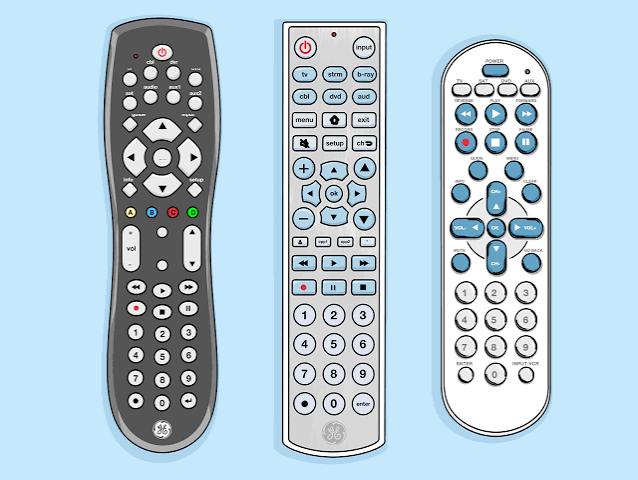
A universal remote is a controller that can be programmed to operate multiple brands of electronics instead of just one. The GE universal remote line includes several models — such as the 3-device, 4-device, and 8-in-1 versions — that can manage everything from older VCRs and DVD players to modern smart TVs and streaming boxes like Roku or Apple TV. Instead of buying a separate high-end remote for each device, one GE remote is programmed with the correct code for each piece of equipment, so a single unit controls them all.
This idea is not unique to GE. According to the general concept described on <cite index=”13-1″>Wikipedia, a universal remote is a remote control that can be programmed to operate various brands of one or more types of consumer electronics devices</cite>. GE’s version is popular because it is affordable, widely available at retail stores, and simple enough for non-technical users to set up in a few minutes.
Key Features of the GE Universal Remote
- Multi-device control – depending on the model, one remote can manage 3 to 8 separate devices.
- Two programming methods – direct code entry using a printed code list, or an automatic code search if you do not have the exact code.
- Pre-programmed defaults – many current models come ready to control popular brands like Samsung TVs or Roku streaming boxes right out of the box.
- Backlit and non-backlit versions – some models include illuminated buttons for use in dark rooms.
- Compact, ergonomic design – built for one-handed use with clearly labeled power, volume, and channel buttons.
- Wide brand compatibility – supports major manufacturers including Samsung, LG, Sony, Vizio, RCA, Panasonic, and Sharp, among others.
How to Program a GE Universal Remote
Programming a GE remote takes only a few minutes once you understand the basic steps. There are three common approaches, and which one you use depends on whether you already have the code list that came with your remote.
Method 1: Direct Code Entry (Recommended)
- Turn on the device you want to control (TV, DVD player, etc.).
- Press and hold the SETUP button until the indicator light stays on.
- Press the button for the device type you are programming (TV, DVD, CBL, SAT, or AUX).
- Using the printed code list, enter the 3- or 4-digit code for your device brand.
- If the code is accepted, the indicator light will blink twice and turn off.
- Point the remote at the device and press the power button to confirm it works.
Method 2: Auto Code Search
If you cannot find your exact code or the first one does not work, the auto search feature scans through the remote’s entire code library.
- Turn on the device.
- Press and hold SETUP until the light stays on, then press the correct device button.
- Press and hold the CH+ (channel up) button. The remote will cycle through codes one at a time, sending a power-off signal after each one.
- As soon as the device turns off, release the button immediately.
- Press SETUP again to save the code.
Method 3: Programming Without a Code List
If the original manual is missing, most GE remote models let you scroll through codes manually using the up and down arrow keys after entering setup mode, testing each one against the device until it responds correctly.
Common GE Universal Remote Codes
Below are a few frequently used starting codes for popular TV brands. Always try the first code listed for your brand, and if it does not work, move down the list or use the auto search method described above.
| Brand | Common 4-Digit Codes |
|---|---|
| Samsung | 0178, 0463, 1042 |
| LG | 0178, 0596, 1176 |
| Sony | 0189, 0294, 1224 |
| Vizio | 1362, 1090, 3211 |
| RCA | 0011, 0111, 0009 |
| Panasonic | 0171, 0054, 0170 |
Because manufacturers periodically update firmware and remote libraries, code lists can vary slightly between remote models and manufacturing dates. If a code above does not work on the first try, the auto search method will almost always find a working match.
Troubleshooting a GE Universal Remote
Remote won’t respond at all Check that the batteries are fresh and inserted with the correct polarity. Weak batteries are the most common cause of unresponsive universal remotes.
Device turns on but buttons don’t work correctly This usually means the code is close but not a perfect match. Try the next code in the list for that brand, since many brands have multiple codes covering different production years.
Remote keeps losing its programming This can happen if the batteries are removed for an extended period, or if there is a factory reset. Simply reprogram the affected device using the steps above.
Remote controls the wrong device Make sure you pressed the correct device button (TV, DVD, CBL, etc.) before entering the code, since each device slot on the remote stores its own separate code.
Why People Still Choose Universal Remotes
Even with smart TVs and app-based remote controls becoming more common, physical universal remotes remain popular for a few practical reasons. They do not need Wi-Fi or Bluetooth pairing, they work instantly with a simple line-of-sight infrared signal, and they are far less likely to run out of battery mid-binge compared to a phone. They are also ideal for households with older relatives or children, since large buttons and a familiar layout are often easier to use than a touchscreen app.
Buying Tips: Choosing the Right GE Remote
- Count your devices first. If you only need to control a TV and a streaming box, a 3-device model is enough. Home theater setups with a soundbar, DVR, and gaming console may need a 4- or 8-device model.
- Check for backlighting if you frequently use the remote in a dim living room.
- Confirm brand compatibility by checking the printed code list or the manufacturer’s online code database before buying, especially for less common device brands.
- Look for battery type and included accessories, since most GE remotes use standard AAA batteries that are not always included in the box.
Frequently Asked Questions (FAQs)
Q1: How do I find the code for my TV brand on a GE universal remote? Check the printed code booklet that came with the remote, or use the auto search method, which scans all available codes automatically until your device responds.
Q2: Can a GE universal remote control a smart TV? Yes. Most GE universal remotes support basic functions like power, volume, and channel control on smart TVs, though advanced smart features like voice search usually still require the TV’s original remote or app.
Q3: Why did my GE remote stop working after changing batteries? Some models briefly lose stored codes when the battery compartment stays empty for too long. Reprogramming the device again usually resolves this within a minute or two.
Q4: Does a GE universal remote need Wi-Fi to work? No. GE universal remotes use infrared (IR) signals, the same technology as most original device remotes, so no Wi-Fi or app pairing is required.
Q5: How many devices can one GE universal remote control? This depends on the model. Basic versions control 3 devices, while higher-end models can manage up to 8 devices from a single remote.
Q6: What do I do if none of the listed codes work? Use the auto code search feature, which cycles through the remote’s complete code library until it finds a code that successfully powers off your device.
Conclusion
The GE universal remote remains one of the simplest, most affordable ways to reduce remote-control clutter at home. Whether you are trying to sync a TV, streaming box, DVD player, or sound system, the direct code entry and auto search programming methods make setup manageable even without technical experience. With the right code — or a few minutes spent on auto search — you can replace three or four separate remotes with one reliable, easy-to-use controller that keeps your entertainment setup simple and stress-free.